How to use Nook
01
Open & Close Nook
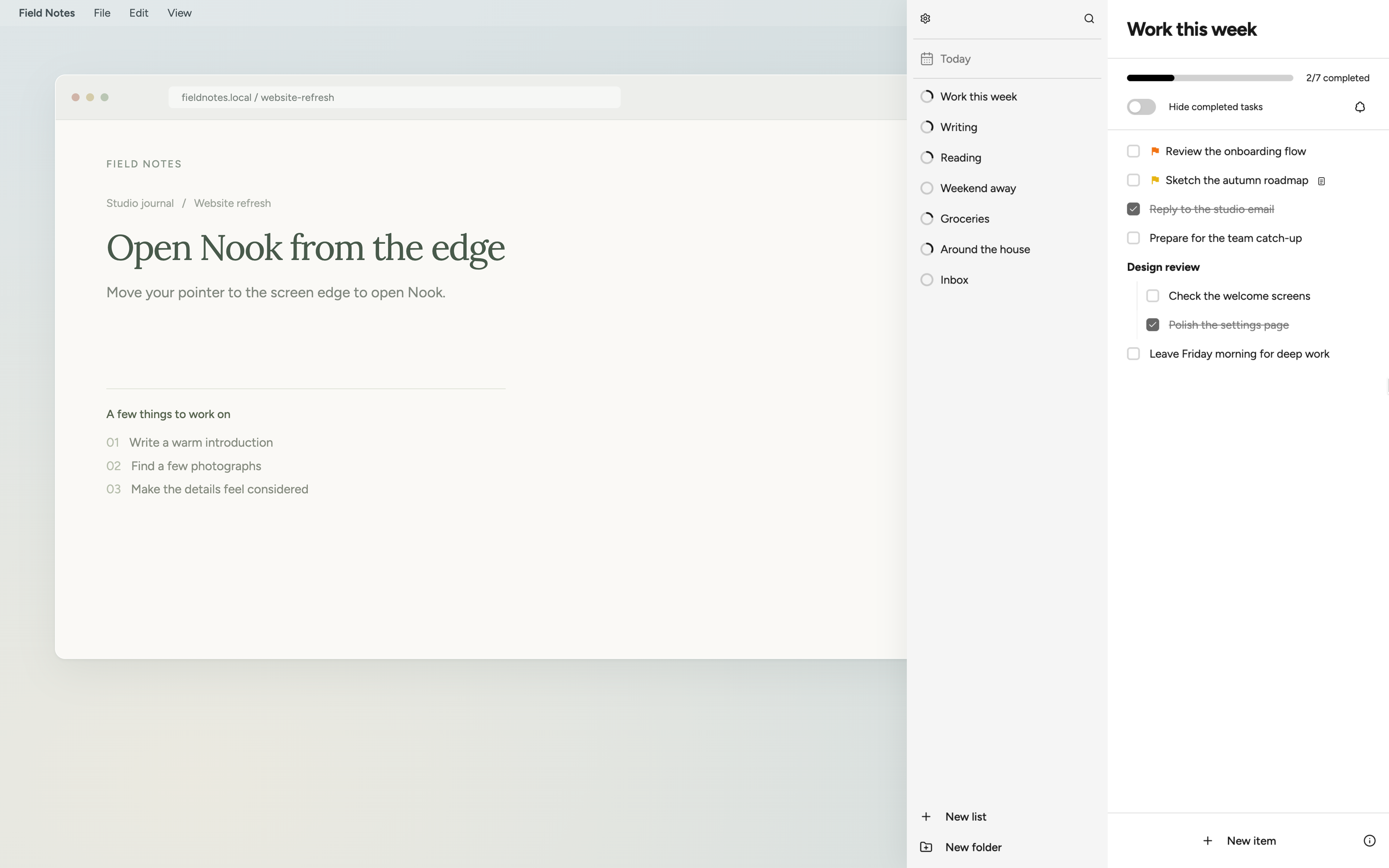
Nook opens as a panel on the right side of your screen. Click outside the panel to hide it.
- Install and open Nook. Download Nook to get the installer for your computer. On Mac, open the .dmg and drag Nook into Applications. On Windows, run the .exe installer and open Nook. The default installation folder is named Nook. Follow the short welcome tour.
- Open the panel. Move your pointer to the right edge of your screen, then click inside Nook to work. From another app, press Control + N on Mac or Ctrl + Alt + N on Windows. On Windows, right-click the Nook icon beside the clock and choose Open Nook. If the icon is hidden, open the small upward-arrow menu first.
- Hide the panel. Click outside Nook. The app stays running, so you can open the panel again with the same shortcut or gesture.
Finished the welcome tour and the window disappeared? That’s intentional. Try the right edge or your platform’s keyboard shortcut.
02
Tasks & Lists
Lists group related items. Each item can be a task, text, a title, or a bullet point.
- Create a list. Click New list at the bottom of the sidebar and give it a name. Use New folder to group related lists.
- Add an item. Click into the list and type. Press Enter for the next item. Start a line with
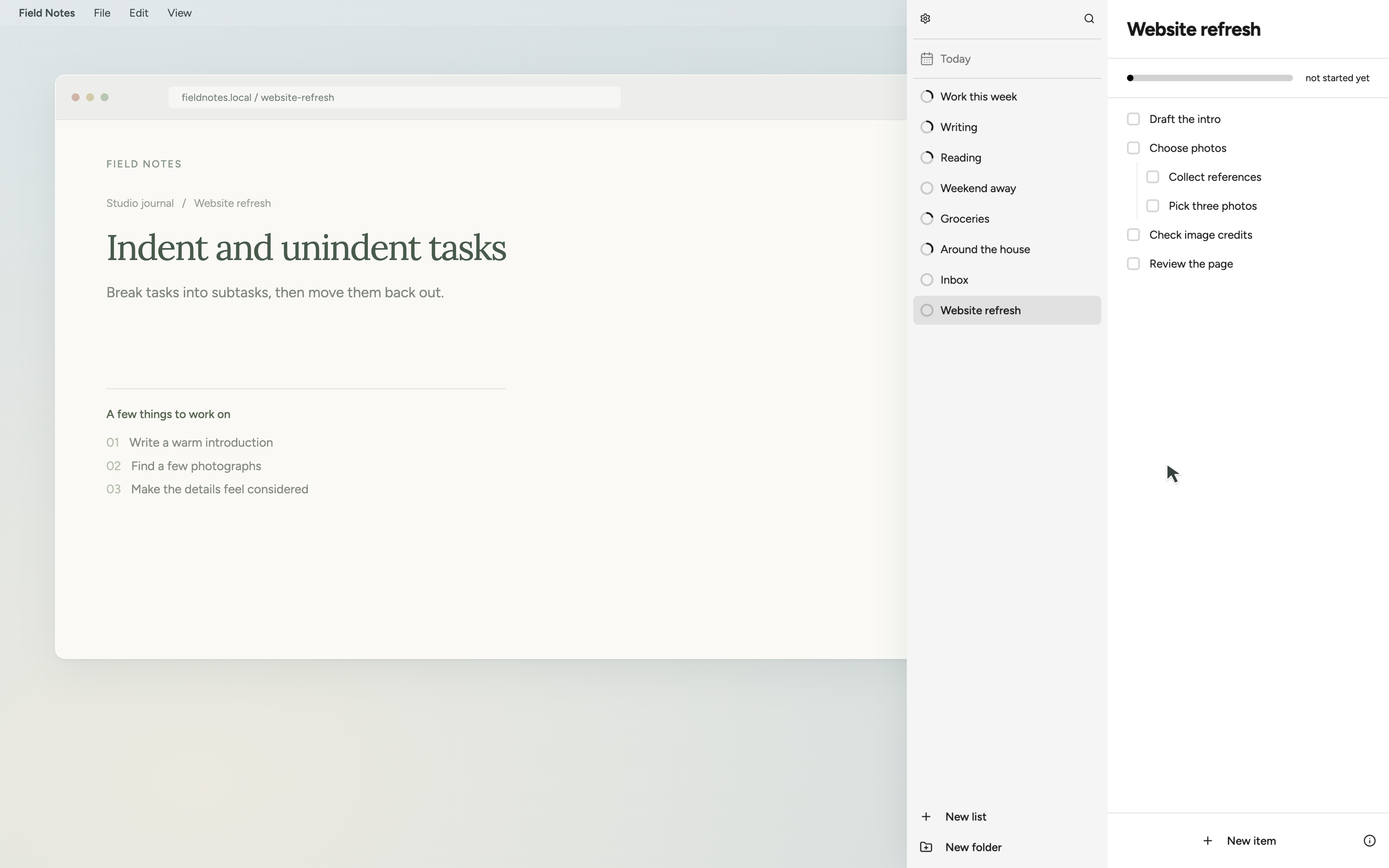
[]followed by a space to make it a task. - Create a subtask. Press Tab to nest an item under the one above it. Use Shift + Tab to unindent it. Drag items to rearrange them.
- Complete a task. Click its checkbox. The list’s progress bar updates to show completed tasks. If the In-progress step is enabled under Task progress in Settings, the first click marks a task in progress and the next completes it.
Item types & notes
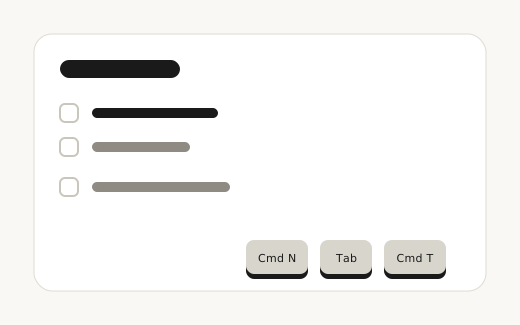
Right-click an item to change its type. With an item selected or being edited, press ⌘ + T to cycle through item types.
Choose Add note, or press ⌘ + N to add or open its note. Notes support Markdown formatting.
Tags & priority
Type # to add a tag. Start with !, !!, or !!! to set priority.
Linked items
Right-click an item and choose Send to list to put it in another list. This creates a linked copy, not a separate task. Edits and completion stay in sync.
Hide is different from delete: Hide completed tasks only changes what you see. Tree shake deletes the completed tasks from that list.
03
Today Scheduler
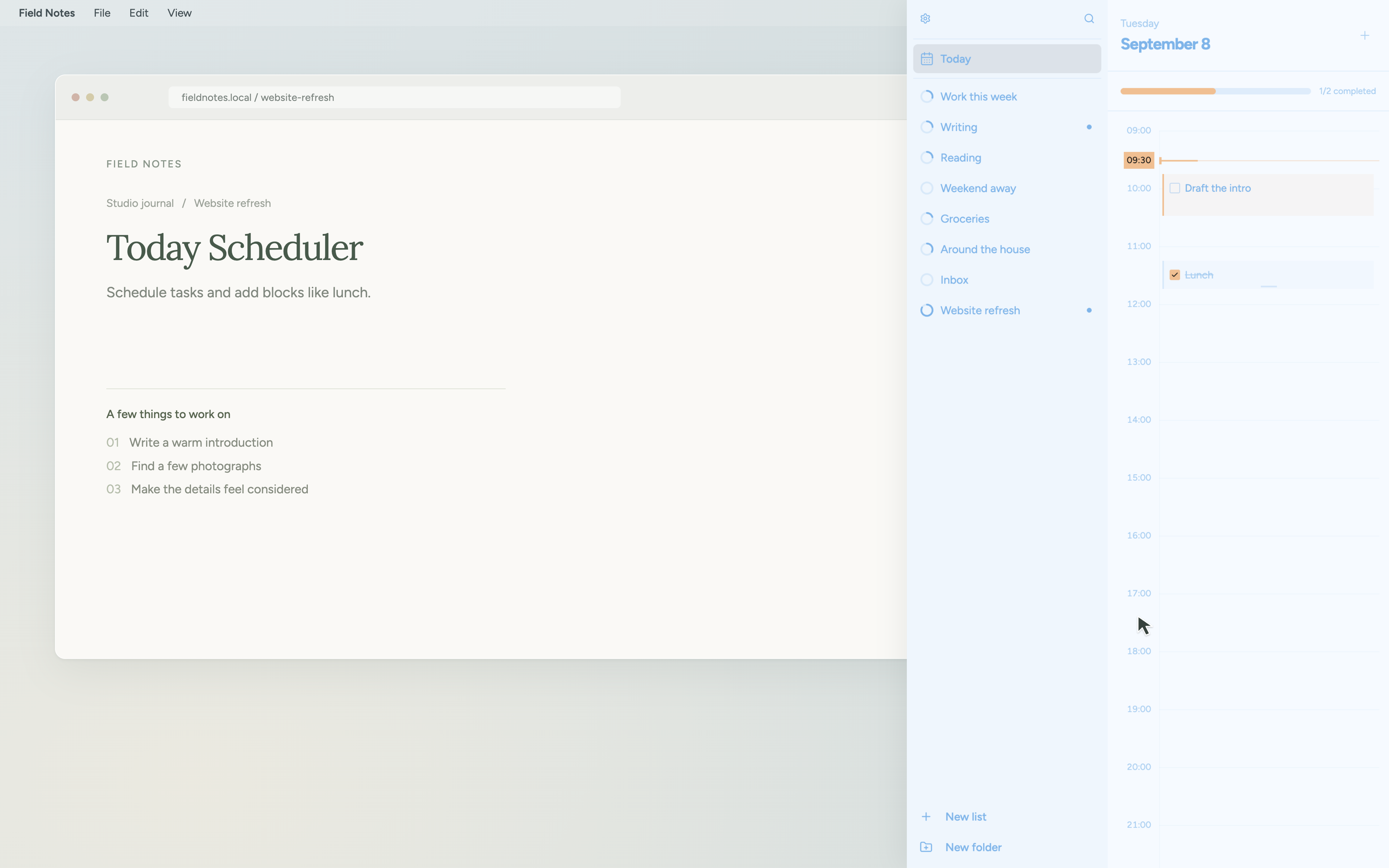
Today is a 24-hour scheduler for your tasks. Open Today at the top of the sidebar to arrange tasks in time blocks.
- Drag to create a task block. Drag across an empty part of the timeline. In the pop-up, type a title under New block, or choose Existing task to search tasks and subtasks or browse a list.
- Choose its time and color. Set the start, end, or duration, pick a color, and click Add to Today. Dragging snaps to 15 minutes; the editor lets you enter a duration as short as one minute.
- Or start from a list. Right-click a task and choose Add to Today. Its title and completion stay linked to the original task. A title typed directly into Today stays outside your lists.
- Edit a block. Single-click a block to edit it, drag it to move it, or drag its bottom edge to resize it. Right-click for colors, Remove from Today, or View the original task when it comes from a list.
Why can’t I move this block?
A task scheduled from its original list has a locked start time. Use View the original task and edit its Schedule there. You can still change its duration in Today. Tasks arranged directly in Today can be moved freely.
Adding a task to Today also schedules it. Removing a linked block leaves the original task in its list, but removes that placement; for a repeating task, it skips that occurrence rather than deleting the repeat rule. Deleting the original task also removes its Today records.
Set when your day starts
In Settings → Today, choose Day starts at. If you choose 06:00, your day runs until 06:00 the next morning. Today is on by default; turn off Show Today if you don’t need it.
Changing this setting does not shorten or extend the current Today. The confirmation shows when this Today ends and when the next one starts. Choose Apply to next Today to save it, or Cancel to keep the setting.
Example: if the current day starts at 08:00 and you change it to 09:00, the review still appears at the original 08:00 cutoff. The next Today includes tasks between 08:00 and 09:00 under Before day start, so no scheduled work is lost.
If you change 08:00 to 06:00, the current day still ends at 08:00. The next timeline starts at 06:00, but that earlier interval belongs to the previous Today. Only unfinished tasks you choose to bring forward in review appear there. If a later start includes two dates of a recurring task, each occurrence keeps its own completion state.
Notes and repeats in Today
Use Notes in the block editor, or right-click a block and choose Add notes or Edit notes. Notes on linked tasks also update the original task.
A task created directly in Today can have its own repeat rule without joining a list. Open Repeat in its editor and choose the interval, weekdays where relevant, and ending. For a task from a list, use Edit in original task to change its repeat rule there.
Today notifications
In Settings → Today, turn on Notifications and allow Nook notifications in your system settings if prompted. Under Remind me, choose 5, 10, or 15 minutes before a task starts. This also covers tasks created directly in Today. Notifications are off by default.
Daily review
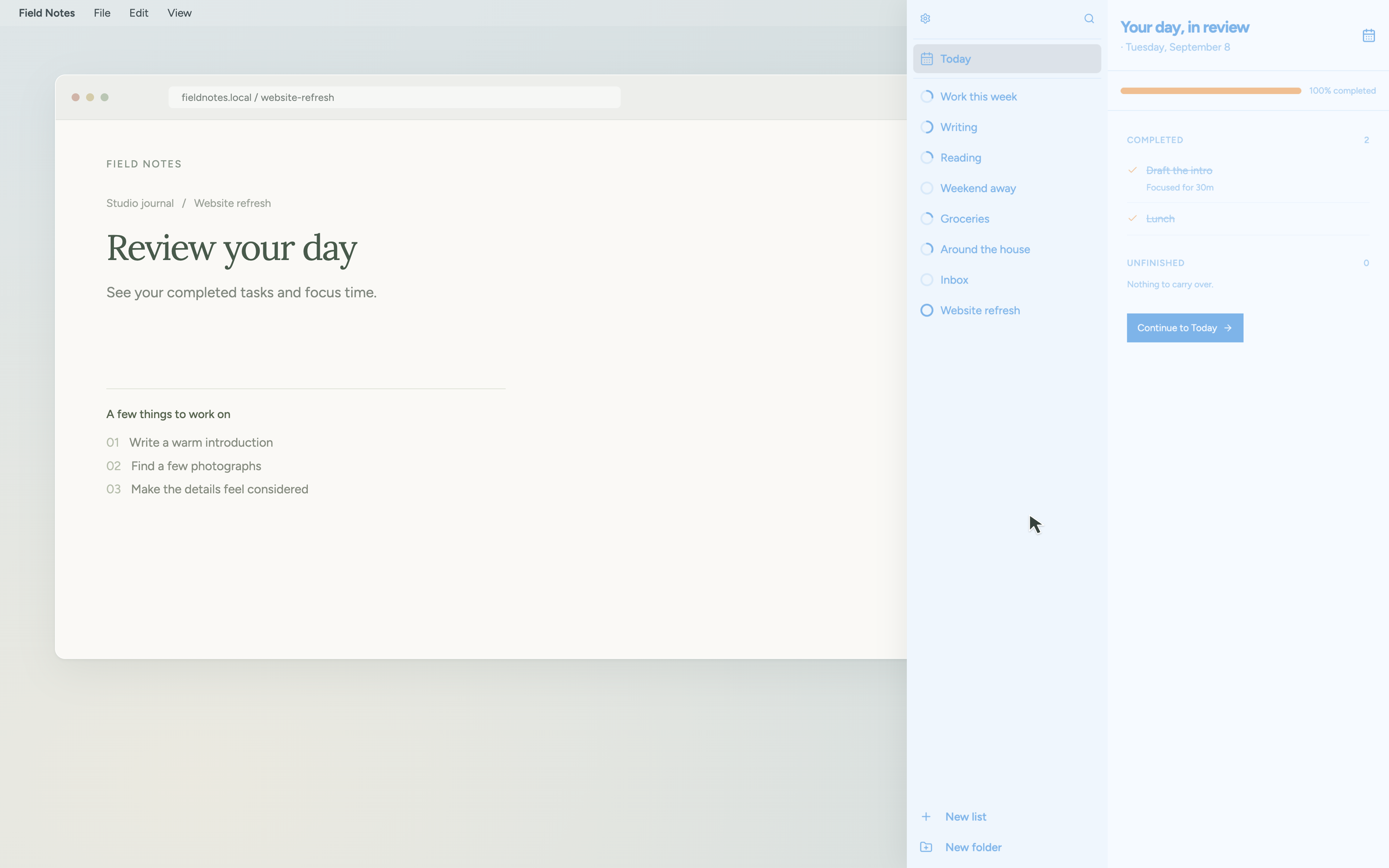
When a day with tasks ends, Today shows a review with your completion percentage, Completed tasks, and Unfinished tasks. Select the unfinished tasks you want to bring into the new Today, then continue. Unselected tasks stay in that day’s review.
A recurring task already arranged in the new Today is selected automatically, so it won’t be duplicated. Carried tasks show how many days they’ve been deferred.
04
Schedule & Repeat
Schedule sets a task’s date, time, and reminders. Repeat makes a task recur at a chosen interval.
- Set a time. Hover over a task and click its clock icon to open Schedule task. Choose a date and time, then set Remind me.
- Choose your reminders. Turn on Notification, In-app banner, or both. Allow Nook notifications in your system settings if prompted.
- Make it repeat. Click the repeat icon, or right-click and choose Set repeat. Choose the interval, any relevant weekdays, and when it should stop: never, on a date, or after a number of occurrences.
Example: to meditate every Friday at 08:00 for 12 weeks, schedule the first Friday at 08:00, set a weekly repeat on Friday, and end it after 12 occurrences. Each occurrence appears in Today on its scheduled day.
Automatically added blocks start at 30 minutes. Change the duration in Today, and Nook remembers it for future occurrences. Schedule banners appear in the original list, not across the Today timeline.
05
Focus Mode
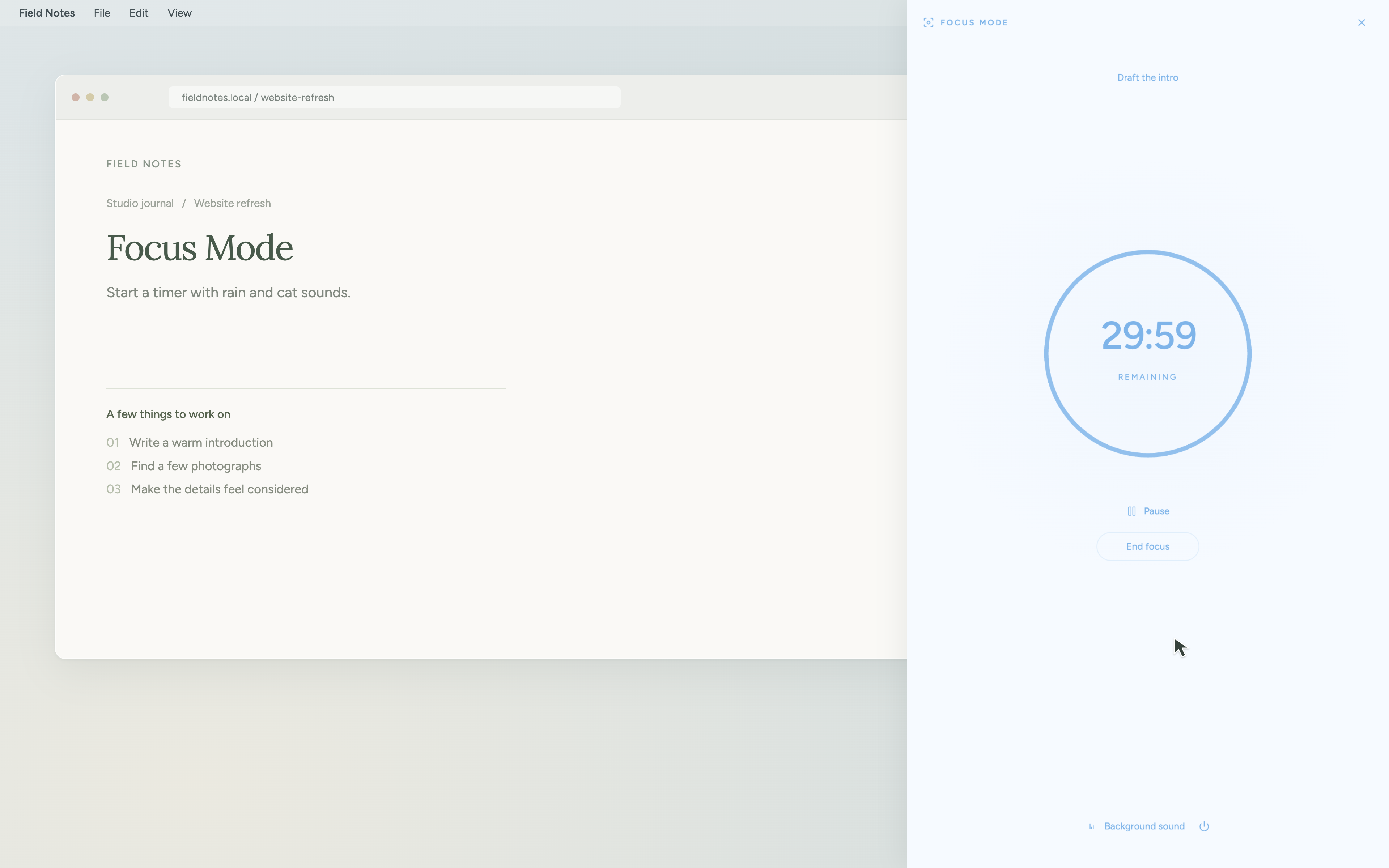
Focus Mode helps you focus on one task. It hides your lists and shows a timer or stopwatch for that task.
To open it, hover over an unfinished task in a list or Today and click its Focus icon.
Timer
Count down from a set duration. Move the slider in 10-minute steps, from 10 minutes up to 3 hours.
Stopwatch
Count up from zero. There is no time limit; end the session when you’re finished.
Choose your mode, then click Start focus. Use Pause and Resume when you need a break, or End focus to finish. When the timer runs out, Nook alerts you and asks whether the task is complete. Completed tasks show their recorded focus time underneath.
Background Sound
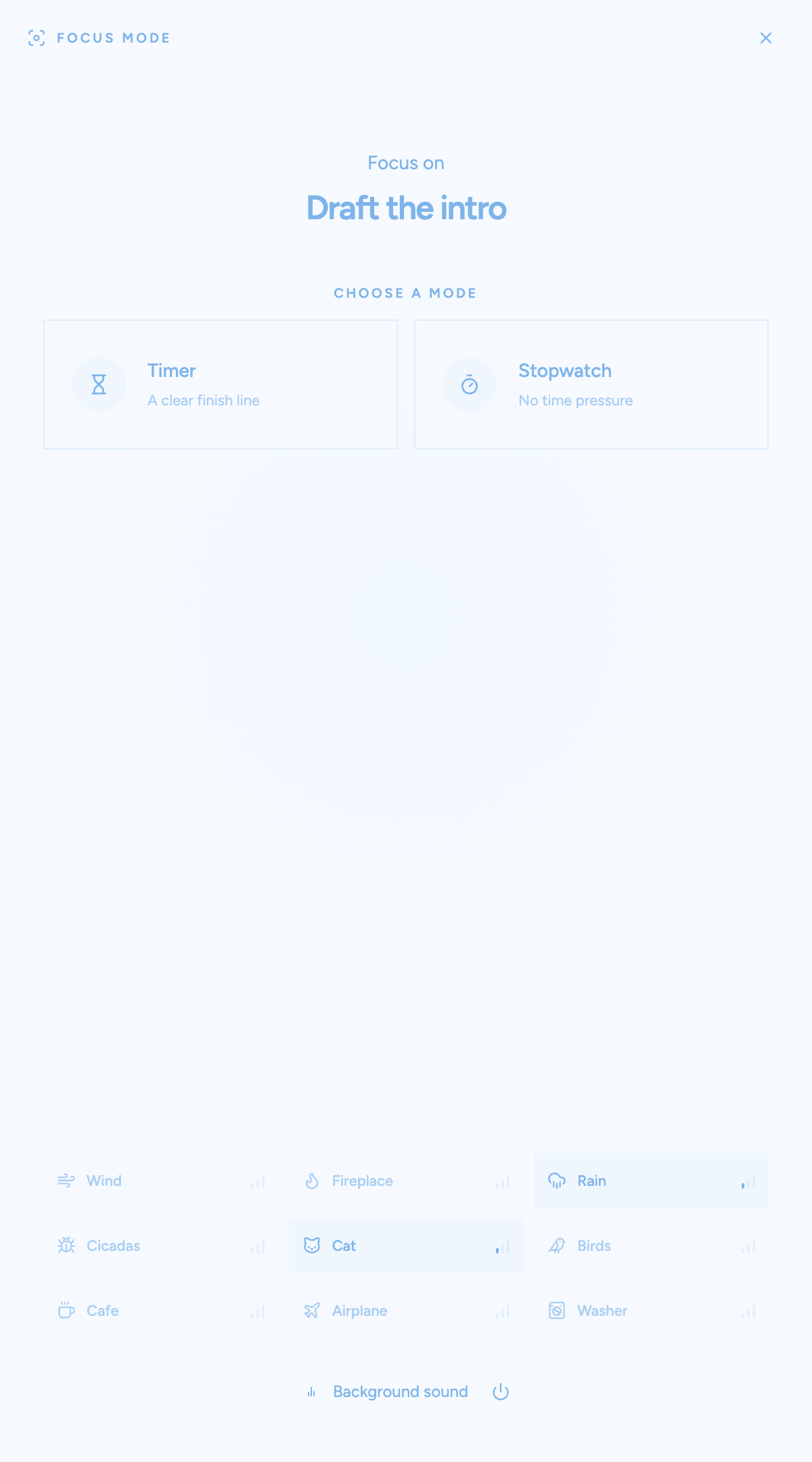
Open Background sound to choose rain, wind, a fireplace, cicadas, a cat, and more. Click a sound repeatedly to cycle through low, medium, high, and off. Select several sounds to layer them, each at its own volume.
The sounds loop, and Nook remembers your mix. Saved sounds stay silent while you choose a mode and begin only after you click Start focus, if sound is enabled. Use the sound on/off control to silence the mix without losing your choices. Click outside the sound menu to close it.
06
Sync
Sync keeps your lists, tasks, and notes up to date between desktop and iOS through a cloud copy. It requires a Nook account and a Nook Pro subscription. You can use Nook locally without either.
1. Create your account on desktop
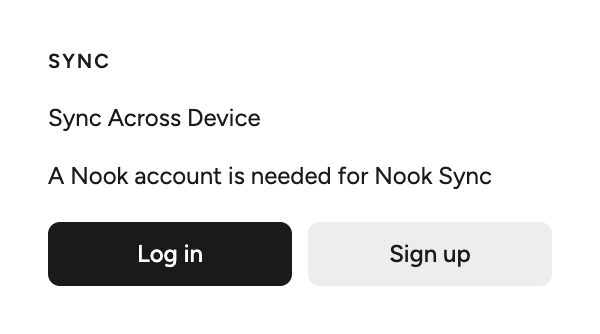
Open Settings from the gear icon and find Sync. Click Sign up, enter your email address, and click Send code. Enter the code from your email and click Verify. If you already have an account, choose Log in instead.
2. Subscribe and enable Sync
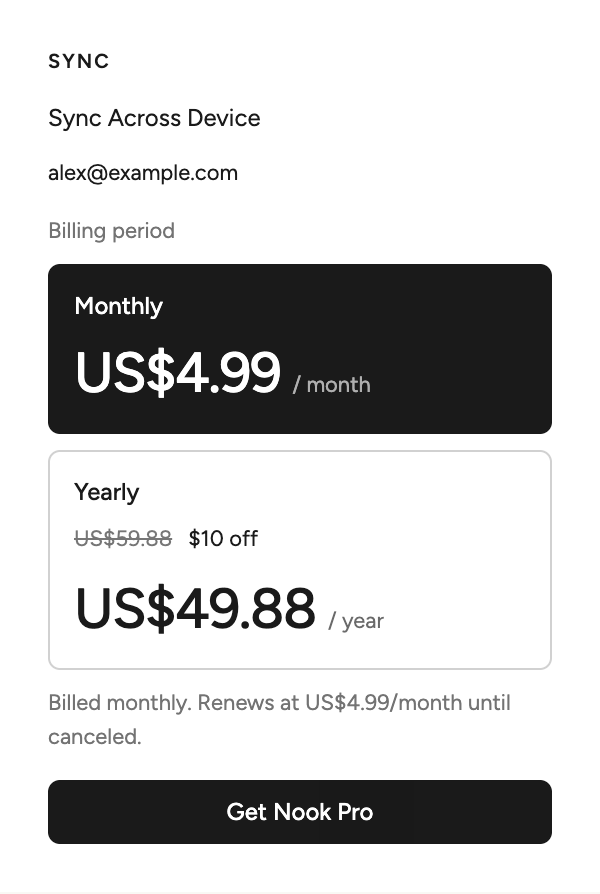
Choose Monthly or Yearly, then click Get Nook Pro. Complete payment in the browser and return to Nook. Nook checks your subscription when you return. If Sync is paused, click Sync to enable it.
3. Install Nook on iOS and sign in
Install Nook from the App Store. When you first open it, sign in with the same email address you used on desktop and enter your email code. If you chose Use only on this device, open Settings from the gear icon in the top-right corner and find Sync.
4. Check that your devices are synced
Look for Synced and Last synced in Settings on desktop. Add a small test task, then check that it appears on your iPhone. Both devices need an internet connection to exchange updates.
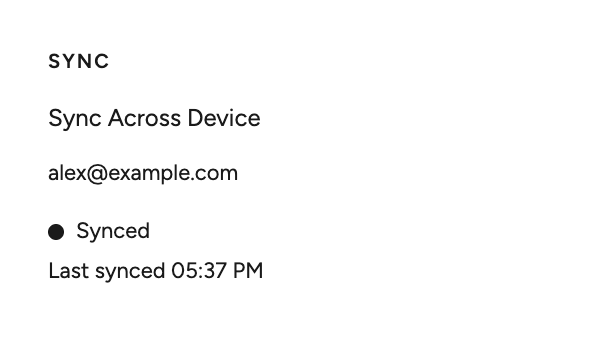
If you see Offline, reconnect to the internet. If Sync reports an error, use Try again when it appears. On iOS, use Check sync status if your new subscription has not appeared yet.
To manage your subscription on desktop, open Settings, choose Manage My Account under Account, then Change subscription.
07
Search
Search finds lists and items by their text, including text inside notes.
- Click the magnifying glass in the sidebar’s upper-right corner.
- Type part of a list name, item, or note. The sidebar filters to matching lists.
- Select a list to open it. Matching items are highlighted in the list.
Press Esc in the search field, or click its close icon, to return to your full list collection.
08
Settings
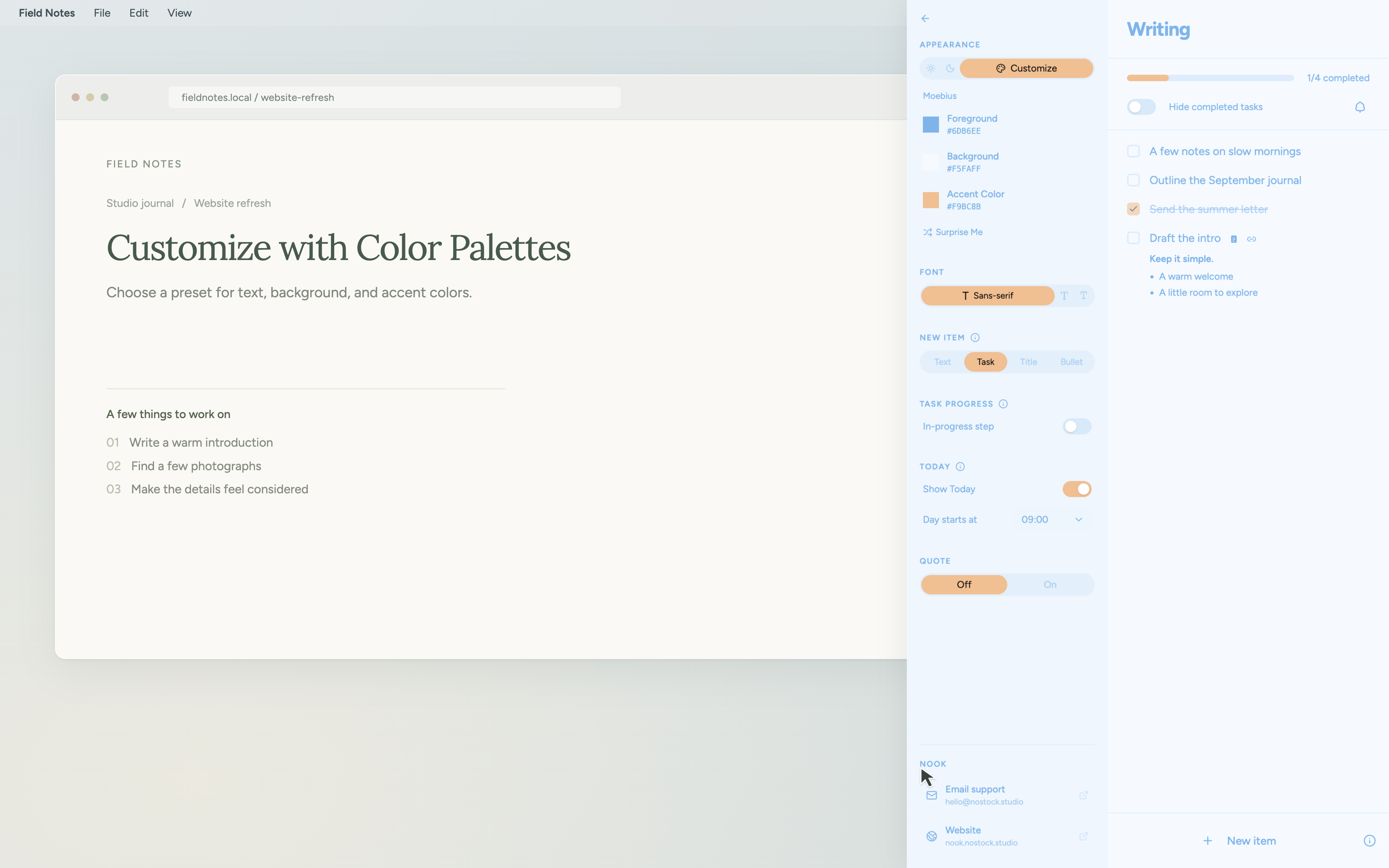
Settings controls Nook’s colors, font, default item type, Today, and quote. On desktop, open it with the gear icon in the sidebar’s upper-left corner. On iPhone, tap the gear icon in the top-right corner.
- Appearance
- Choose Light, Dark, or Customize. In Customize, use Surprise Me to try a skin, or set your own foreground, background, and accent colors.
- Font
- Choose Sans-serif, Serif, or Monospace.
- Default item type
- Choose what a new item starts as. You can still change individual items later.
- Quote
- Show or hide the sidebar quote. Click the quote itself to edit it; hover over it to reveal the shuffle icon.
09
Keyboard Shortcuts
These shortcuts are for macOS. Control + N opens Nook from anywhere; item shortcuts work when an item is selected or being edited.
On Windows, use Ctrl + Alt + N to open or close Nook. For the item shortcuts below, use Ctrl instead of ⌘.
| Action | Shortcut |
|---|---|
| Open or close Nook | Control + N |
| Add a new item | ⌘ + I |
| Add an item below | Enter |
| Cycle item type | ⌘ + T |
| Duplicate an item | ⌘ + D |
| Add or open a note | ⌘ + N |
| Indent / unindent | Tab / Shift + Tab |
| Undo / redo | ⌘ + Z / ⇧ + ⌘ + Z |
While typing: start a line with [] for a task, - for a bullet, or ** for a title, followed by a space.
10 · iPhone
Nook on iPhone
Use Nook on your iPhone to manage tasks, plan your day, and focus.
Lists and folders
- Open Lists. Tap the Lists icon in the top-left corner to open the Lists screen. Tap a list to open it.
- Create a list or folder. Tap New List or New Folder at the bottom. Enter a name and tap Save.
- Organize your lists. Press and hold a list or folder, then drag it between rows to reorder it or onto a folder to move it inside. Tap a folder to expand or collapse it.
- Use the actions menu. Tap the ellipsis beside a list or folder to rename, move, or delete it. A folder’s menu also includes New List Inside and New Folder Inside.
Tasks and notes
- Add an item. Pull down in a list to start typing, or tap the plus button at the bottom to open the item editor.
- Complete or rearrange items. Tap a checkbox to complete a task. Press and hold an item to drag it into a new position. Swipe right to find Indent and Outdent.
- Add a note. Open an item’s details and scroll to Note. Use Edit to write and Preview to read the formatted note.
- Use an item in another list. Choose Send to List in its details. The linked item shares its text, note, and completion across lists.
Today Scheduler
Tap the calendar icon at the top of a list to open Today. Add an existing task or a separate block, then set its time, duration, note, and repeat rule. A linked task keeps the repeat rule from its original item.
Focus Mode
Open a task’s details and tap Focus. Choose a timer or stopwatch, then tap Start focus. Open Background sound to choose a mix such as Rain and Cat. End the session to review it and complete the task.
Skins and settings
Tap the gear icon in the top-right corner to open Settings. Under Appearance, choose a skin or customize its three colors. You can also change the font and choose how Today and task completion behave.
Local use and Sync
No account is needed to use Nook locally. To sync across devices, sign in with the same account and enable Sync in Settings on each device. See Set up Sync for account and subscription steps.
Support
Contact Support
Tell us what you’re trying to do, along with your Nook version and operating system.
Email Nook support